Omnia
  • Admin settings
  • Blocks
    • Anchor navigation
    • Action button
    • Activity feed
    • Announcements
    • Authentication block
    • Banner
    • Blocks for analytics
    • Blocks for Event management
    • Blocks for Forms
    • Blocks for pages
    • Blocks for processes
    • Breadcrumb
    • Calendar rollup
    • Channel rollup
    • Controlled documents library block
    • Copilot chat
    • Create app block
    • Community rollup block
    • Current navigation
    • Document rollup
    • FAQ block
    • General block settings
    • HTML/script
    • IFrame block
    • List rollup
    • Media
    • Media rollup
    • Mega menu
    • Notification panel
    • Using the Omnia block web part
    • Organization tree block
    • Posts block
    • People rollup
    • Power app block
    • Properties block
    • Publishing app rollup block
    • Profile completion (classic)
    • QR code
    • Quick links
    • Rating
    • Related links
    • RSS reader
    • Search
    • Sign-off requests rollup
    • Table of contents block
    • Task rollup
    • Taxonomy navigation
    • Teamwork rollup
    • Team news rollup
    • Teams channel feed
    • Text
    • User information
    • User profile progress
    • Welcome block
    • Working with blocks on pages
    • Viva Engage
  • General assets and options
  • Pages and page navigation
  • Working with documents
  • Working with processes
  • Working with events
  • Using communities
  • Using newsletters
  • Using Omnia Feed
  • User options
  • Roles and permissions in Omnia
  • Setup
  • Accessibility
  • Switch to site selected
  • About SharePoint CSP enforcement compatibility
  • SharePoint Server 2019 – End of Support and Omnia Testing Policy Update
  • Cookies consent information
  • MCP client integration
  • Release notes
  • In Development
  • Contribute to this documentation
Omnia
  • Blocks
  • Quick links
  • View page source

Quick links

Administrators can add and edit shared links using options in Omnia admin. Links can be shown either for the whole tenant or for a specific business profile.

You can use this block to show shared links on any page.

Settings

The following settings are available for the block:
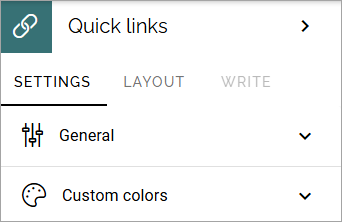
../../_images/quick-links-settings-v78.png

General

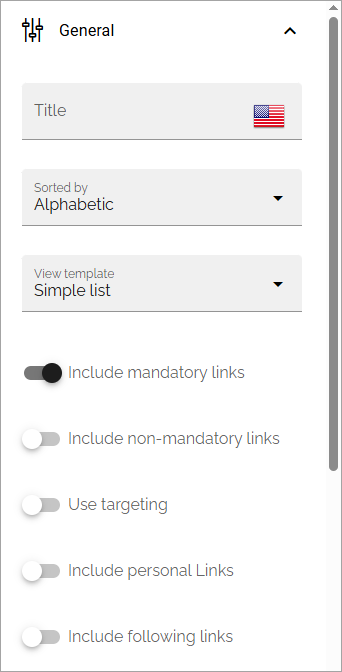
The following is available here:

../../_images/quick-links-settings-general-v78.png

(All options are not shown in the image but described below.)

  • Title: If a title should be shown for the block, add it in this field.

  • Sorted by: Decide how to sort the link list; Alphabetic or Last visited order.

  • View template: Select view for the list here; Simple list, App icons, Navigation view or App launch.

  • Include mandatory links: Choose to include mandatory links, or not. (In earlier versions, mandatory links are always shown).

  • Include non-mandatory links: If non-mandatory Links should be displayed, select this option.

  • Use targeting: Select to use targeting (meaning the targeting that was set up for the links in Omnia admin) or not for the links you choose to display here. Effects mandatory links as well. Normally this option should be selected as there are good reasons for the targeting of certain links, but in specialized implementations it is still possible to choose to display all links, targeted or not.

  • Include personal links: If the logged in user’s personal links (= created by the user) should be displayed, select this option.

  • Include following links: Following links are non mandatory links that the user has chosen in his or her My links list. If such links should be shown in this block, select this option.

  • No result text: Here you can add a text to be shown when the query is empty, if you wish.

  • Categories: Shared links can be categorized. Select to show one or more categories here. If no selection is made, all categories are shown.

  • Item limit: Set the number of links to be shown per “page” in th list.

  • Padding: You can set padding between the block border and the list using these settings.

Custom colors

You should primarily set colors centrally but you can change colors for some elements here, if needed:
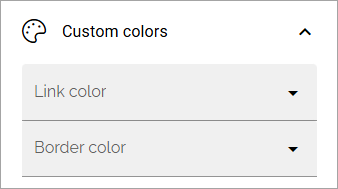
../../_images/quick-links-settings-colors-v78.png

Layout and Write

The WRITE Tab is not used here. The LAYOUT tab contains general settings, see: General block settings

Previous Next

© Copyright 2026, Omnia Digital Workplace AB. Last updated on Jun 22, 2026.

Built with Sphinx using a theme provided by Read the Docs.