Omnia
  • Admin settings
  • Blocks
  • General assets and options
  • Pages and page navigation
  • Working with documents
  • Working with processes
    • Authoring processes
      • Working with draft processes
        • Creating a draft process
        • Using the work space for processes
        • The Drawing tab - authoring processes
        • The Content tab - authoring processes
        • The Documents tab - authoring processes
        • The Pages tab - authoring processes
        • The Links tab - authoring processes
        • The Tasks tab - authoring processes
        • Edit properties when editing a process
        • Create new draft from a published process
        • Save, check in or discard when authoring a process
        • Preview a process when authoring
        • Edit a process
        • Delete a draft process
        • Create a new process from a process step
      • Working with published processes
      • Working with tasks when authoring processes
      • Publish - the approval workflow for processes
    • Processes library settings
    • Processes archive
    • Displaying processes for users
    • Print proceses
  • Working with events
  • Using communities
  • Using newsletters
  • Using Omnia Feed
  • User options
  • Roles and permissions in Omnia
  • Setup
  • Accessibility
  • Switch to site selected
  • About SharePoint CSP enforcement compatibility
  • SharePoint Server 2019 – End of Support and Omnia Testing Policy Update
  • Cookies consent information
  • MCP client integration
  • Release notes
  • In Development
  • Contribute to this documentation
Omnia
  • Working with processes
  • Authoring processes
  • Working with draft processes
  • The Links tab - authoring processes
  • View page source

The Links tab - authoring processes

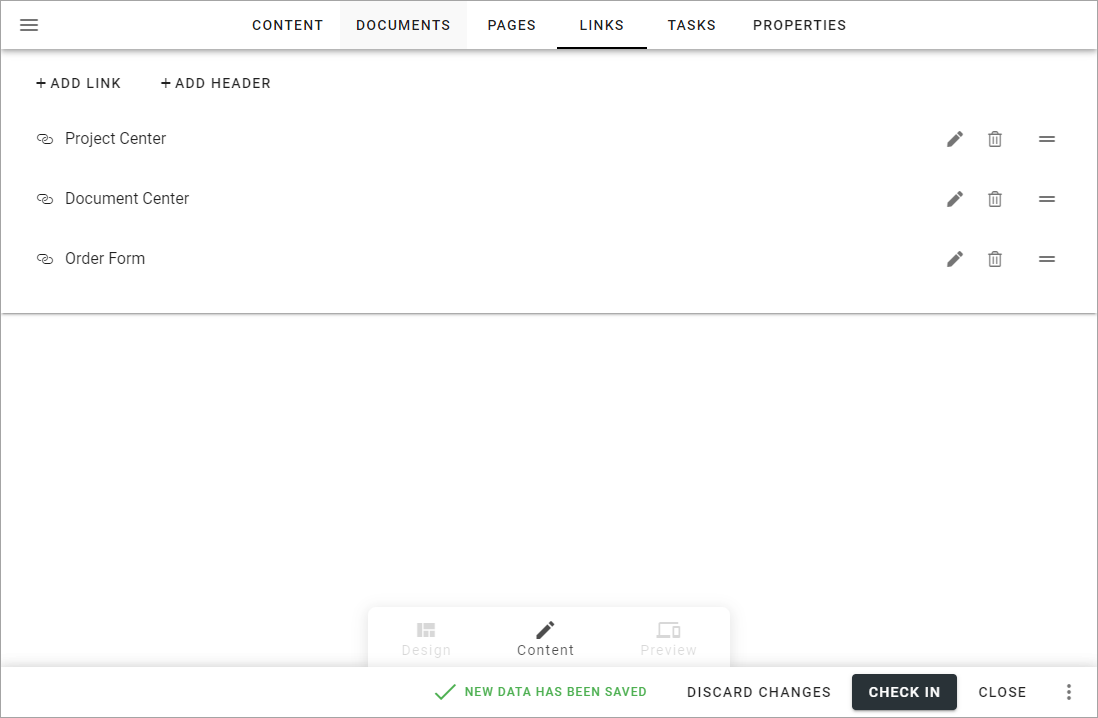
Use this tab to add a number of useful links for the process or process step. You can also add headers to organize the list.
../../../../_images/processes-links-tab-v7.png

Add a link

Do the following to add a link:

  1. Click ADD LINK.

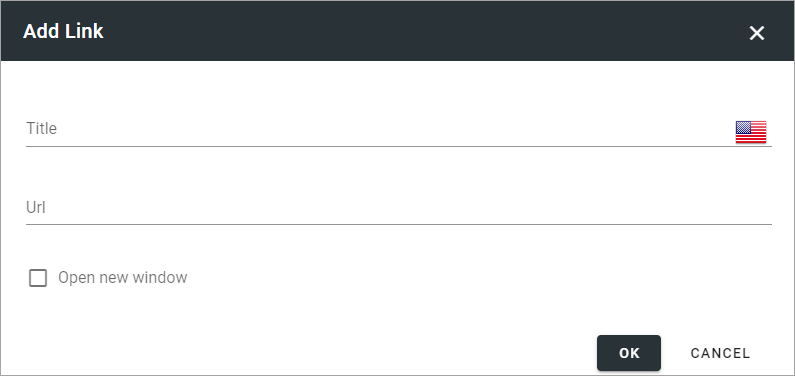
  2. Use the following settings:

../../../../_images/pm-links-tab-add-v7.png
  • Title: This will be the clickable text for the link. Add it in all or any available languages. Default tenant language is required.

  • URL: Type or paste the URL here.

  • Open in new window: If the target should be opened in a new window, which probably is a good idea, select this option.

  1. Click OK to add the link.

Add a header

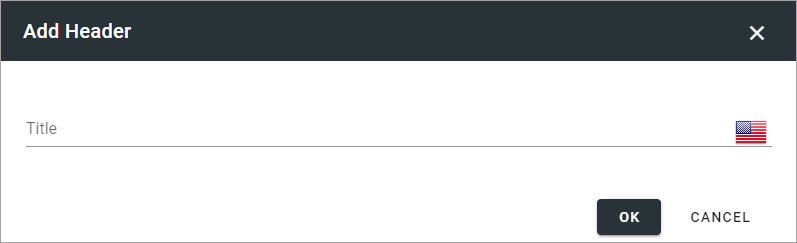
If you need headings to organize the link list, here’s how to add them:

  1. Click ADD HEADING.

  2. Type the heading here:

../../../../_images/pm-links-tab-heading-v7.png
  1. Click OK to add the heading.

Organize the link list

You can do the following to organize the link list:

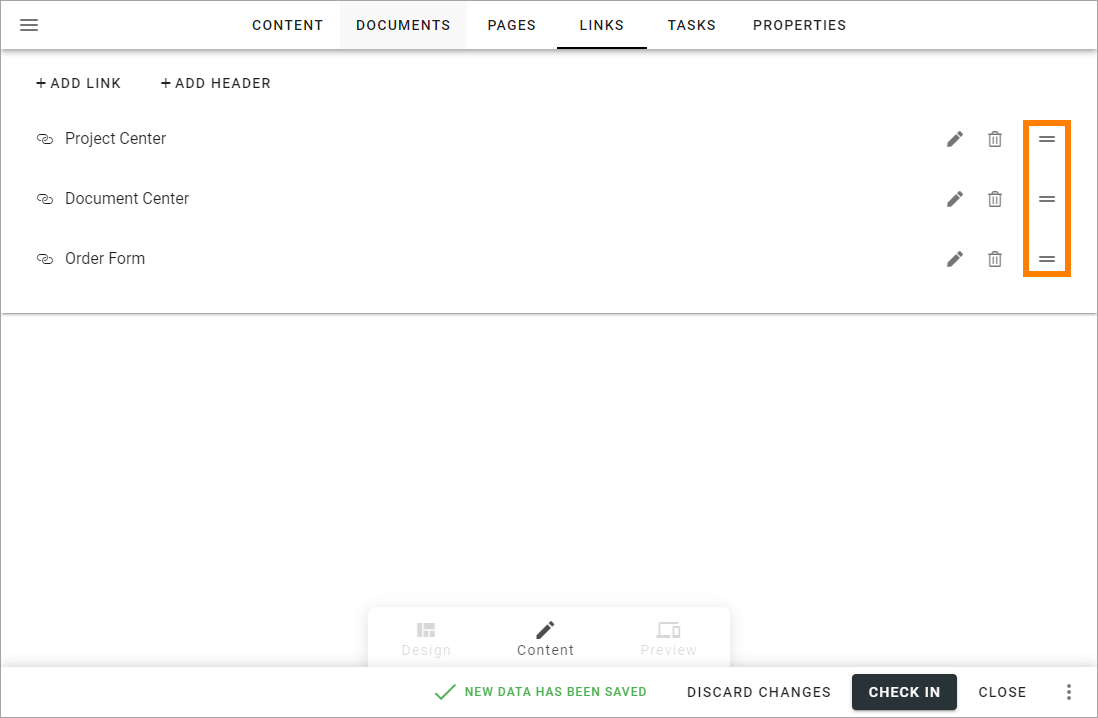
Click the pen to edit a link or a heading. Click the dust bin to delete it.

To move a link or a heading to another position, drag the icon to the far right to the desired position.
../../../../_images/pm-links-organize-v7.png
Previous Next

© Copyright 2026, Omnia Digital Workplace AB. Last updated on Jun 22, 2026.

Built with Sphinx using a theme provided by Read the Docs.