Omnia
  • Admin settings
  • Blocks
  • General assets and options
  • Pages and page navigation
  • Working with documents
  • Working with processes
    • Authoring processes
    • Processes library settings
    • Processes archive
    • Displaying processes for users
    • Print proceses
  • Working with events
  • Using communities
  • Using newsletters
  • Using Omnia Feed
  • User options
  • Roles and permissions in Omnia
  • Setup
  • Accessibility
  • Switch to site selected
  • About SharePoint CSP enforcement compatibility
  • SharePoint Server 2019 – End of Support and Omnia Testing Policy Update
  • Cookies consent information
  • MCP client integration
  • Release notes
  • In Development
  • Contribute to this documentation
Omnia
  • Working with processes
  • Print proceses
  • View page source

Print proceses

If it’s possible to print a process, it’s most likely set up by adding a button to the process layout. Here’s an example:
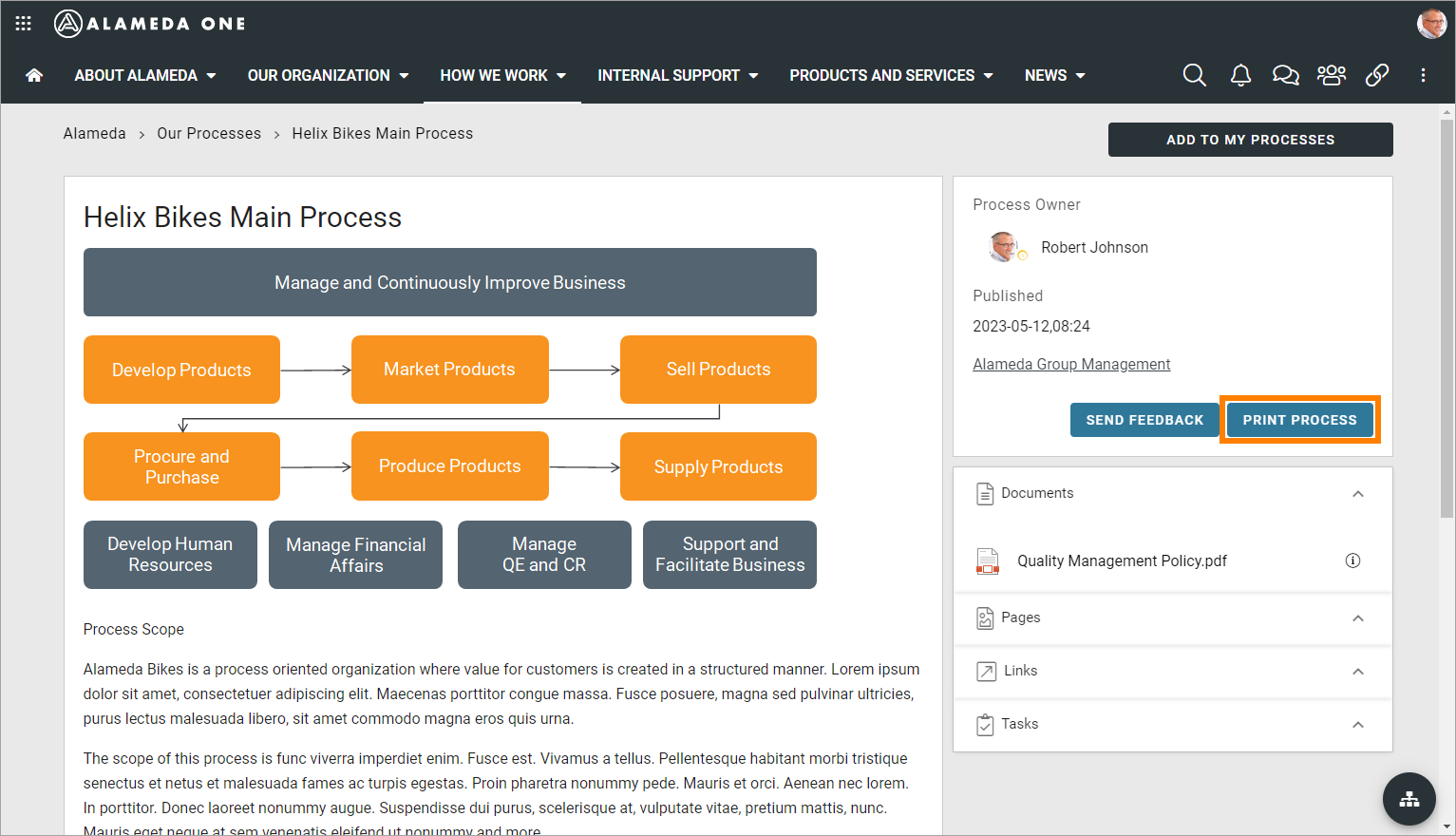
../../_images/print-process-button-v7-new.png

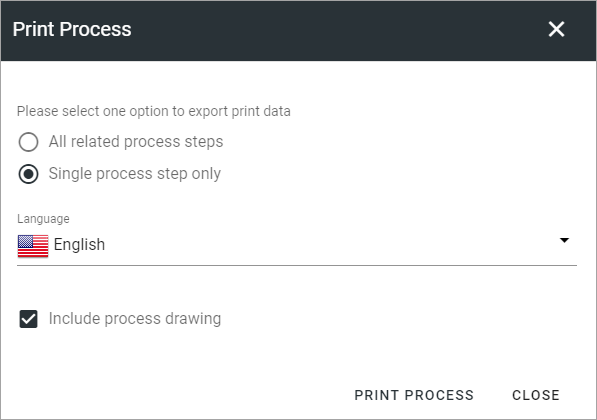
You can choose the following:

../../_images/print-process-settings-v7.png
  • All related process steps: This prints all related process steps, both main processes and subprocesses. If this process is linked to from a main process, that main process will not be printed.

  • Single process step only: Select this to just print the step you see.

  • Language: Here you can change the language to be printed BUT the process in question must have been translated to the language chosen to make any difference. If a translation for the chosen language does not exist, english will be the language printed.

  • Include process drawing: By default the process drawing (if any) will be printed. Deselect if you don’t want that.

When you have chosen what to print, click PRINT PROCESS.

Previous Next

© Copyright 2026, Omnia Digital Workplace AB. Last updated on Jun 22, 2026.

Built with Sphinx using a theme provided by Read the Docs.