Edit your user profile card
It can be possible to edit the information on your profile card directly. If your organization uses this functionality, this is how you do.
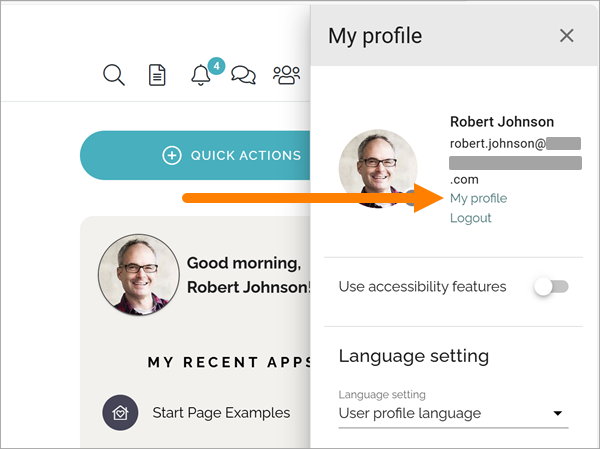
You can open your profile card in a number of ways, depending on how Omnia is set up. One way that is always available is selecting “My profile” here:
The user profil card is opened in private view, meaning some information only you can see.
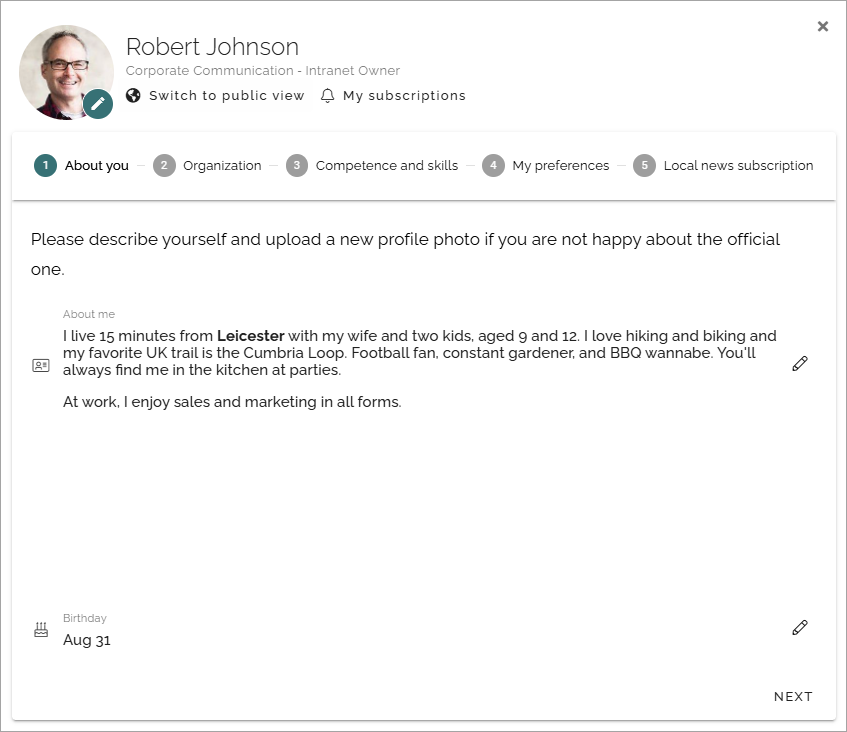
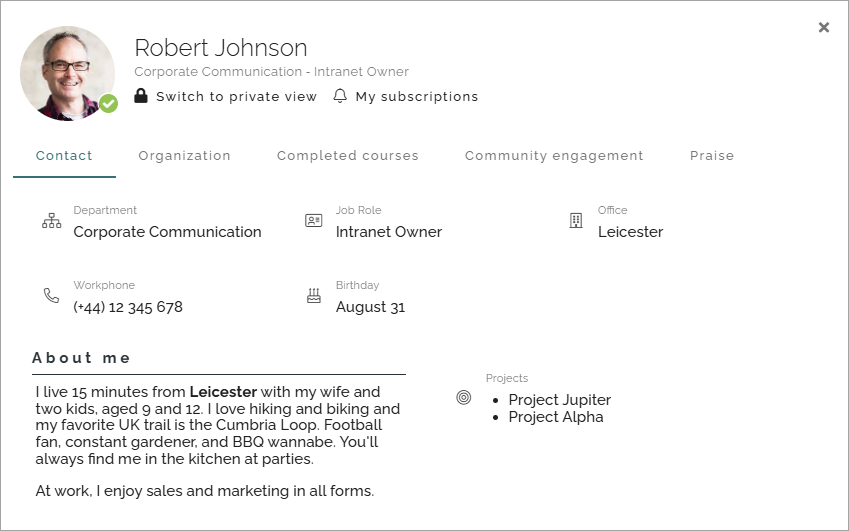
How the card looks can vary a lot depending on how it’s set up. It can also look different for different groups of colleagues. The private view can also look quite different from the public view, again depending on how it’s set up. What you see here is just an example.
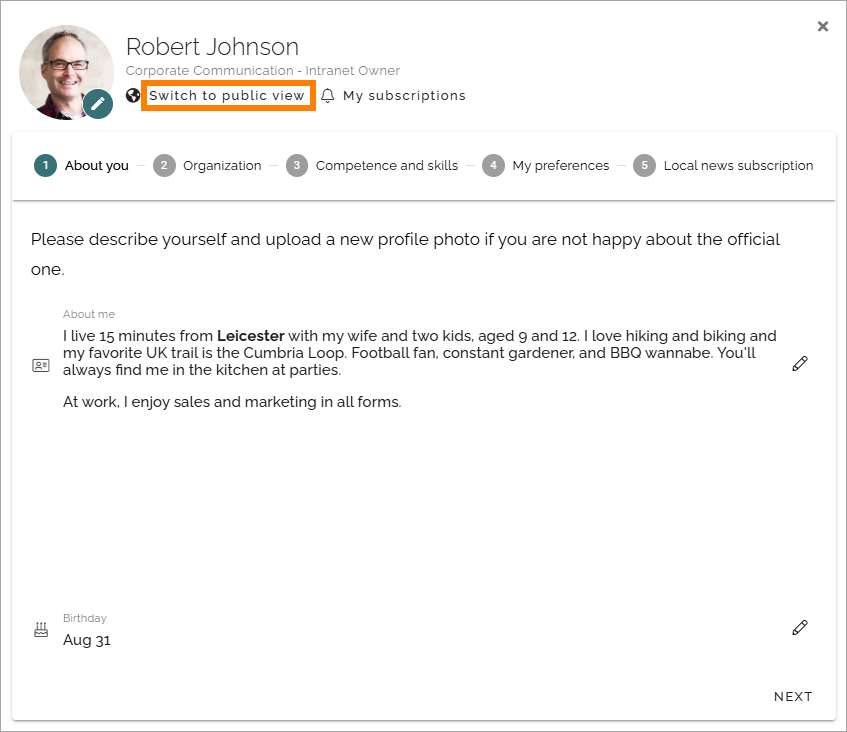
Note that you can always switch to the public way to evaluate what others can see on your card.
Here’s an example of the public view for the card seen above:
Editing your card
As you surely have figured out already, editing is done by clicking the pen for the section you want to edit.
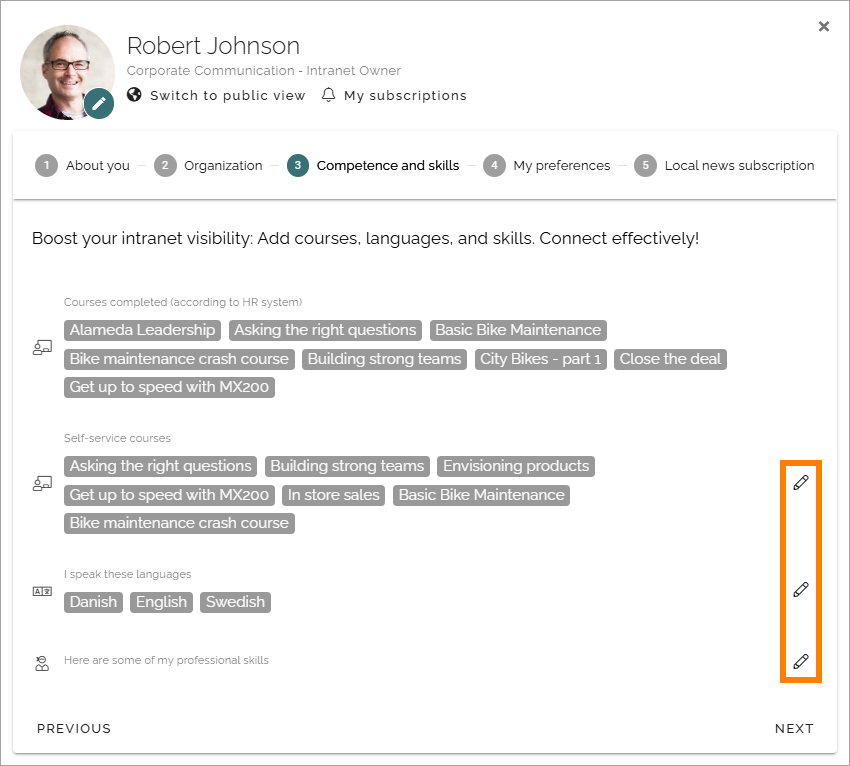
Edit a text field
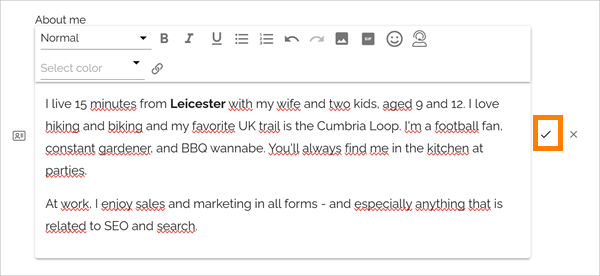
When editing a text field, you can use the RTF editor. For more information, see: Editing text with the RTF editor
Generally, when you have finished editing a section, click here to save the changes (or the x to not save):
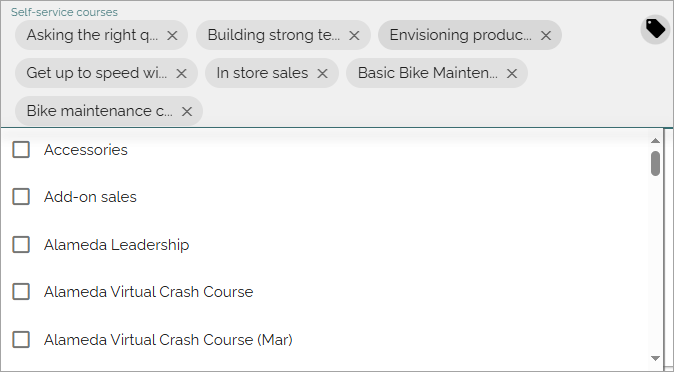
Editing metadata
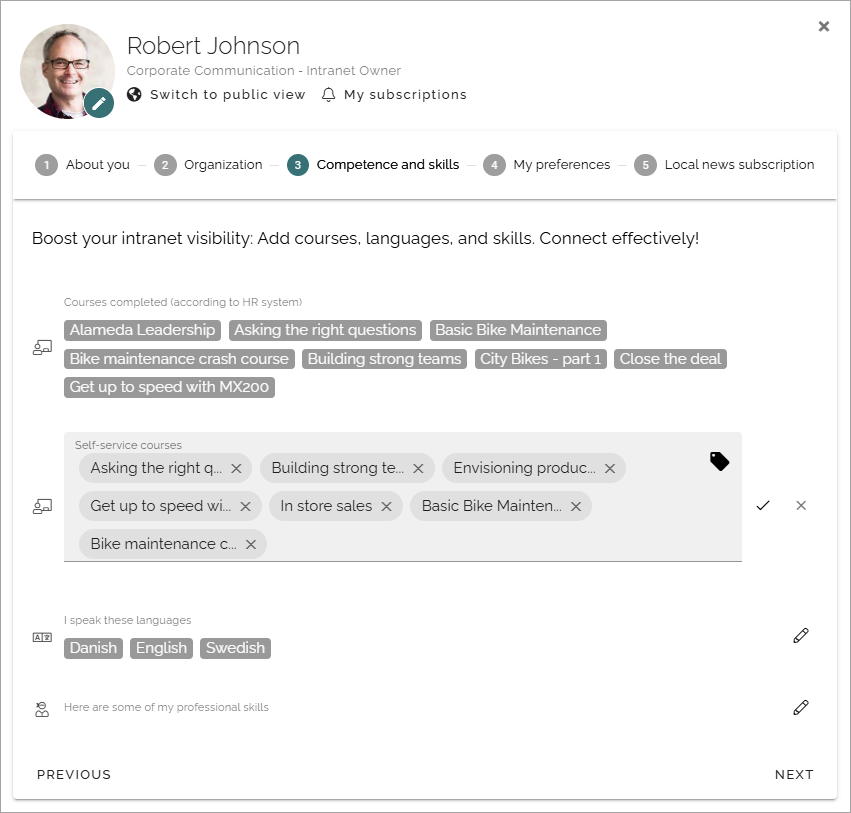
Here’s an example of how you edit metadata:
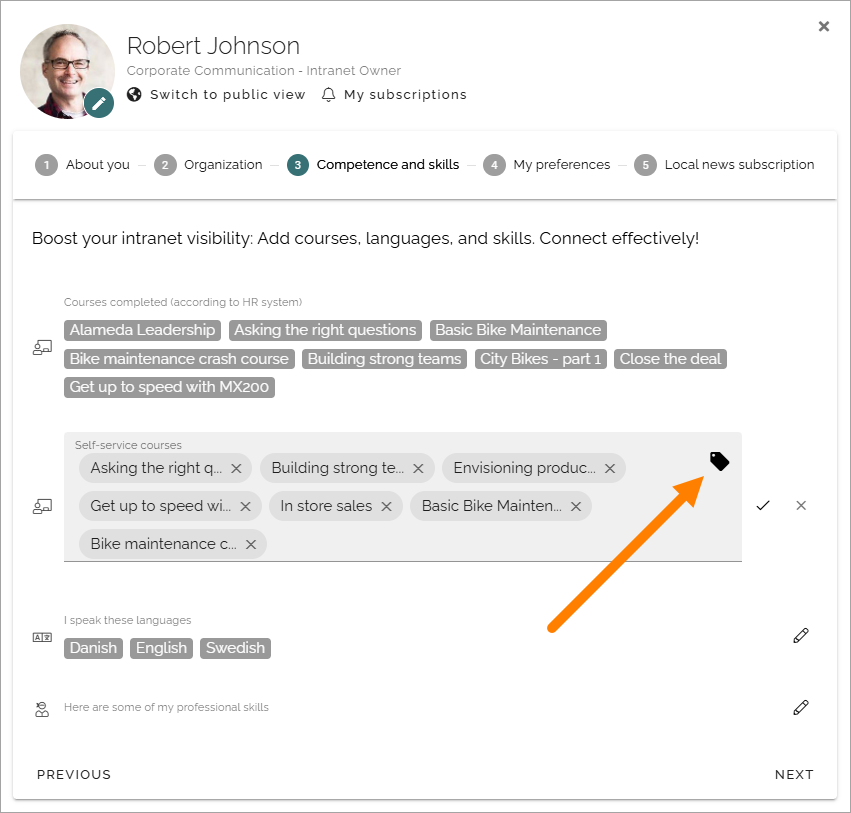
Click the x for a metadata to remove it. Click the tag to add new:
Select one or more metadata from the list.
(Don’t forget to save the changes in the block, see above).