Omnia
  • Admin settings
    • Tenant Settings
      • Announcements
      • Block gallery
      • Business profiles
      • Dashboard
      • Features (Tenant)
      • Omnia Feed - Tenant settings
      • Permissions for the tenant
      • Properties
      • Settings
      • Shared links
      • Sign-off requests
      • System
      • Tutorial
      • User management - tenant settings
      • Document management
      • Process management - Tenant settings
        • Settings (Process management)
        • Shape gallery
        • Process types
        • Process Templates
      • Web content management
    • Business profile settings
    • App settings
  • Blocks
  • General assets and options
  • Pages and page navigation
  • Working with documents
  • Working with processes
  • Working with events
  • Using communities
  • Using newsletters
  • Using Omnia Feed
  • User options
  • Roles and permissions in Omnia
  • Setup
  • Accessibility
  • Switch to site selected
  • About SharePoint CSP enforcement compatibility
  • SharePoint Server 2019 – End of Support and Omnia Testing Policy Update
  • Cookies consent information
  • MCP client integration
  • Release notes
  • In Development
  • Contribute to this documentation
Omnia
  • Admin settings
  • Tenant Settings
  • Process management - Tenant settings
  • Shape gallery
  • View page source

Shape gallery

A number of useful process shapes are installed per default. You can also add additional shapes.
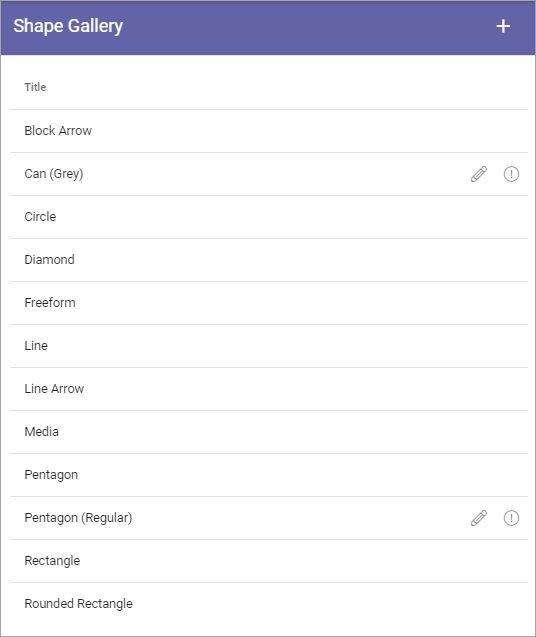
../../../../_images/pm-shape-gallery-new.png

In this example Can(Grey) and Pentagon (Regular) are added. That’s why they can be edited.

Note that when you add a shape to a Process Template, there’s a number of settings you can do for the shape, see the heading “Settings for a shape” on this page: The Drawing tab - authoring processes

Edit or remove a shape

A shape you have added can be edited or removed (the default shapes can not). Click the pen to edit or the dust bin to remove.
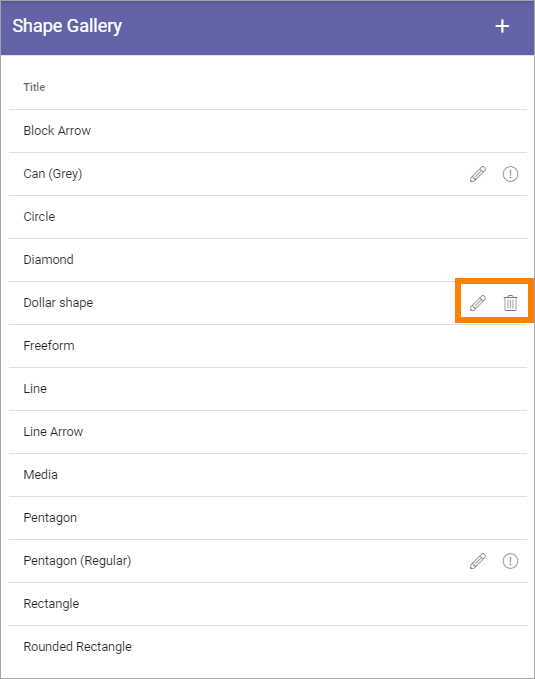
../../../../_images/pm-shape-edit-delete-new.png

Regarding the other added shapes that can’t be removed, you can point at the i icon for more informaion.
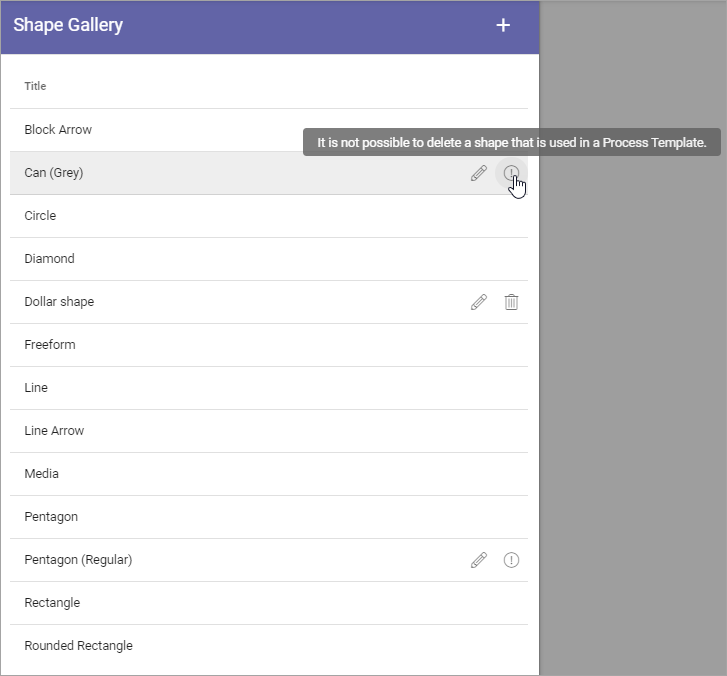
../../../../_images/pm-shape-edit-delete-icon.png

As you can see from the message, a shape that is used in a Process Template can’t be removed.

Adding a new shape

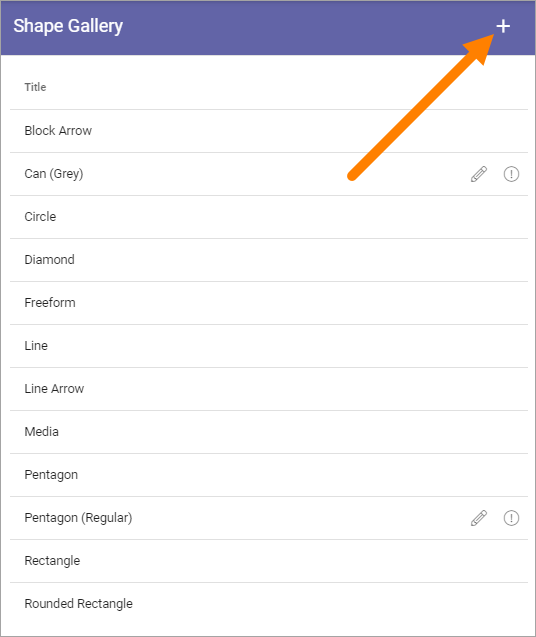
To add a new shape, click the plus.

../../../../_images/pm-shape-clickplus-new.png

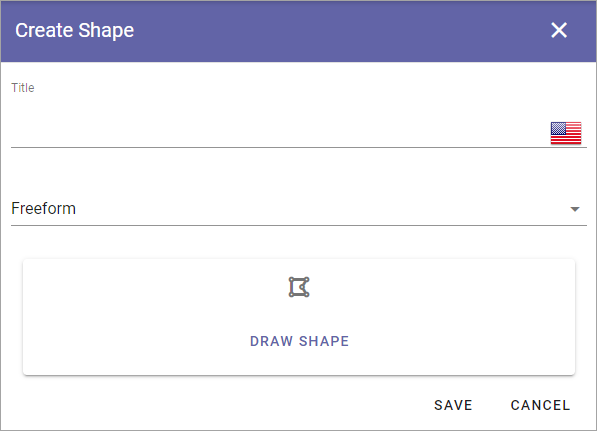
Use the following settings:

../../../../_images/pm-shape-settings-new2.png
  • Title: You can (should) add a title for the new shape, in any or all available languages. Default language for the tenant is mandatory.

  • Freeform/Media: Decide how to add the shape; Select “Freeform” to draw the shape, “Media” to upload an image.

Adding a freeform shape

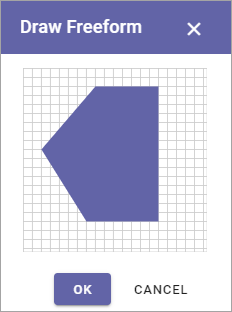
When you have selected “Freeform” do the following:

  1. Click “DRAW SHAPE”.

  2. Click to set the first corner.

  3. Move the mouse (do not hold the mouse button down) to the next corner and click.

  4. Contintue drawing the shape this way.

  5. To finish the shape, move the mouse to the first corner of the shape and click.

  6. Click “OK”.

../../../../_images/pm-shape-freeform-new.png
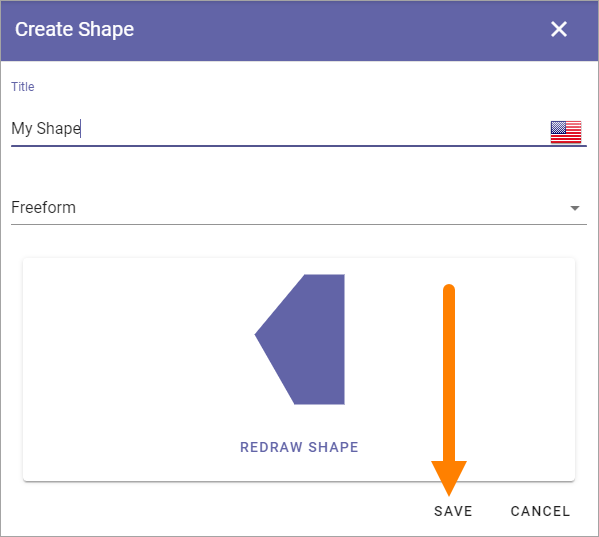
  1. Click “Save”.

../../../../_images/pm-shape-freeform-save-new3.png

Adding Media

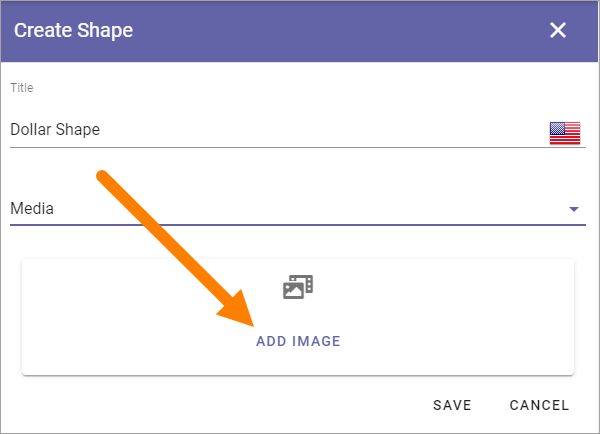
When you have selected “Media”, continue this way:

  1. Click ADD IMAGE.

../../../../_images/pm-shape-media-new2.png

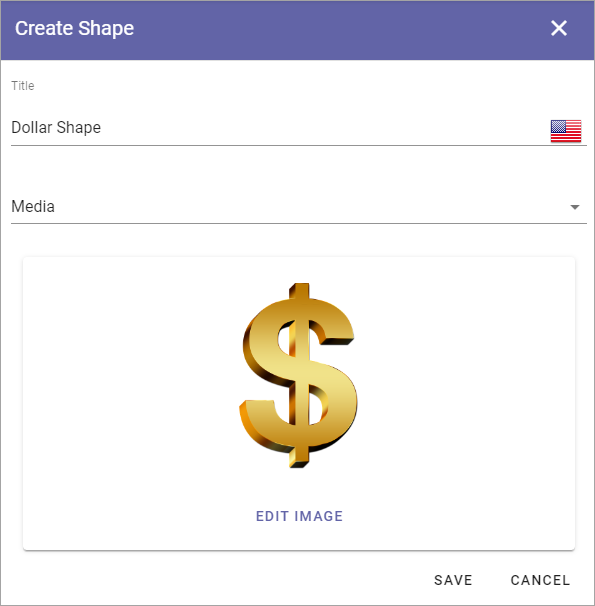
The Media Picker now starts and you use it to add an image as a shape from your computer or from any other source available. For more information, see Media Picker

  1. Use the Media Picker to select an image.

  2. Click “OK” in the Media Picker.

  3. Click “Save”.

../../../../_images/pm-shape-media-picker-dollar-new2.png
Previous Next

© Copyright 2026, Omnia Digital Workplace AB. Last updated on Jun 22, 2026.

Built with Sphinx using a theme provided by Read the Docs.