Omnia
  • Admin settings
    • Tenant Settings
    • Business profile settings
      • Announcements
      • Communities settings
      • Features (Business Profile)
      • Forms
      • Notification panel
      • Omnia Feed - Business profile settings
      • Permissions for a business Profile
      • Publishing settings
      • Search
        • Search config
        • Quick search settings
        • Advanced search settings
        • Promoted search results
        • Search feedback
        • Search statistics
      • Settings
      • Shared links
      • Teamwork settings
      • User Management - business profile
      • Workspace
    • App settings
  • Blocks
  • General assets and options
  • Pages and page navigation
  • Working with documents
  • Working with processes
  • Working with events
  • Using communities
  • Using newsletters
  • Using Omnia Feed
  • User options
  • Roles and permissions in Omnia
  • Setup
  • Accessibility
  • Switch to site selected
  • About SharePoint CSP enforcement compatibility
  • SharePoint Server 2019 – End of Support and Omnia Testing Policy Update
  • Cookies consent information
  • MCP client integration
  • Release notes
  • In Development
  • Contribute to this documentation
Omnia
  • Admin settings
  • Business profile settings
  • Search
  • Promoted search results
  • View page source

Promoted search results

Based on search feedback, an administrator can create promoted search results in Omnia admin.

Whenever a user searches on any of the keywords of a promoted search result, it will be available here in advanced search:
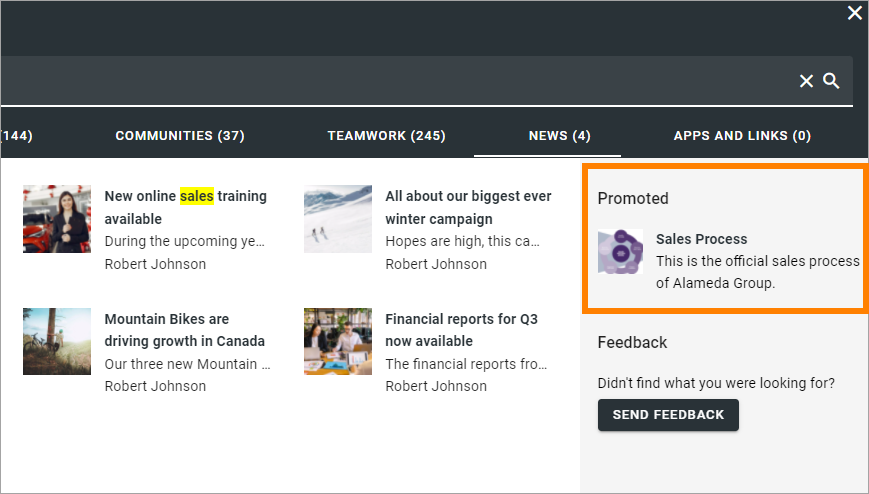
../../../../_images/promoted-search-results-place1.png

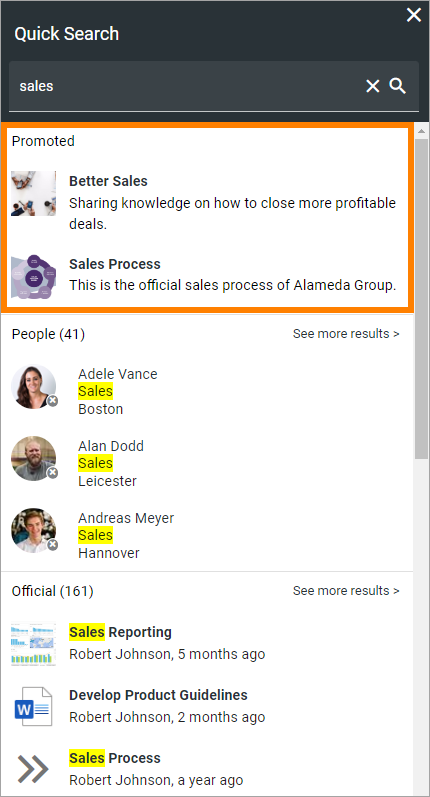
Or here in quick search:

../../../../_images/promoted-search-results-quick-new.png

You decide to enable/disable promoted search results in the settings for advanced search and for quick search, respectively.

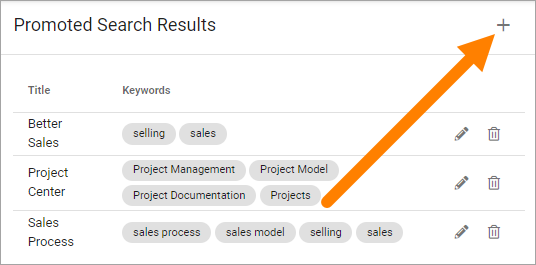
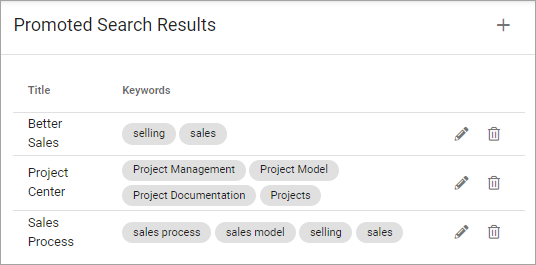
You create a list of promoted search result to be used for both advanced search and quick search. Here’s an example:
../../../../_images/promoted-search-results-list-new.png

To edit, click the pen. To delete, click the dust bin.

When you edit a promoted search result, the same settings are available as when creating a new one, see below.

Create a new promoted search result

Do the following:

  1. Click the plus.

../../../../_images/promoted-search-results-clickplus-new.png
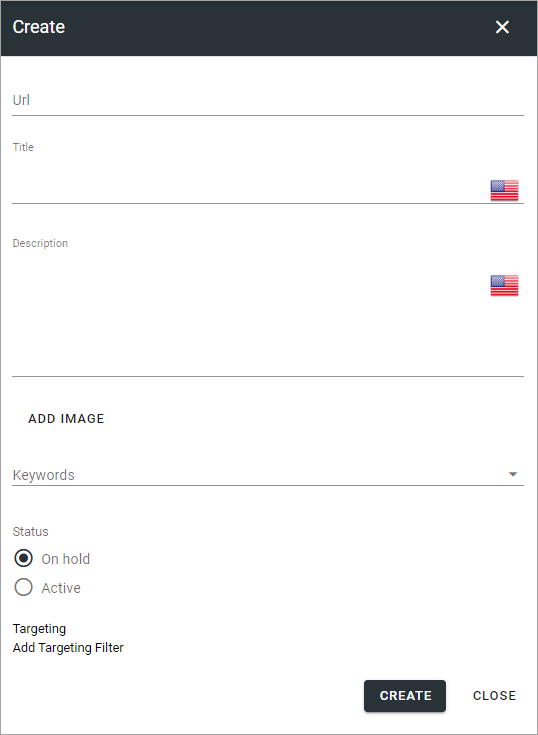
  1. Use the following settings:

../../../../_images/promoted-search-results-settings.png
  • URL: Type or paste a URL that a click on the heading should go to.

  • Title: Type the clickable heading that will be shown in advanced search, in any tenant language. An example is shown in the top image.

  • Description: This text will be shown under the heading, in any tenant language. An example is shown in the top image.

  • ADD IMAGE: If you want, you can add an image to be shown by the promoted search result (see example in the top image).

  • Keywords Add the keywords that will result in the promoted search result being shown.

  • On hold: On hold means it’s not active yet. To enable this search result, select “Active”.

  • Active: When a promoted search result is active, you can set start and end dates if you wish. It’s not mandatory.

  • Targeting: A promoted search result can be targeted, meaning just shown to some users. See this page for more information: Using targeting

  1. Click CREATE when you’re done.

Previous Next

© Copyright 2026, Omnia Digital Workplace AB. Last updated on Jun 22, 2026.

Built with Sphinx using a theme provided by Read the Docs.