Related documents
You can use this option to relate a controlled document to other controlled documents, as information that can be shown to document readers. This option can also be used to make sure someone, for example the document owner, will be notified when a new edition is published for any related document. Any published controlled document can be related to.
The number of related documents is shown to the right of the title. In this example Sustainability policy has 1 related document:
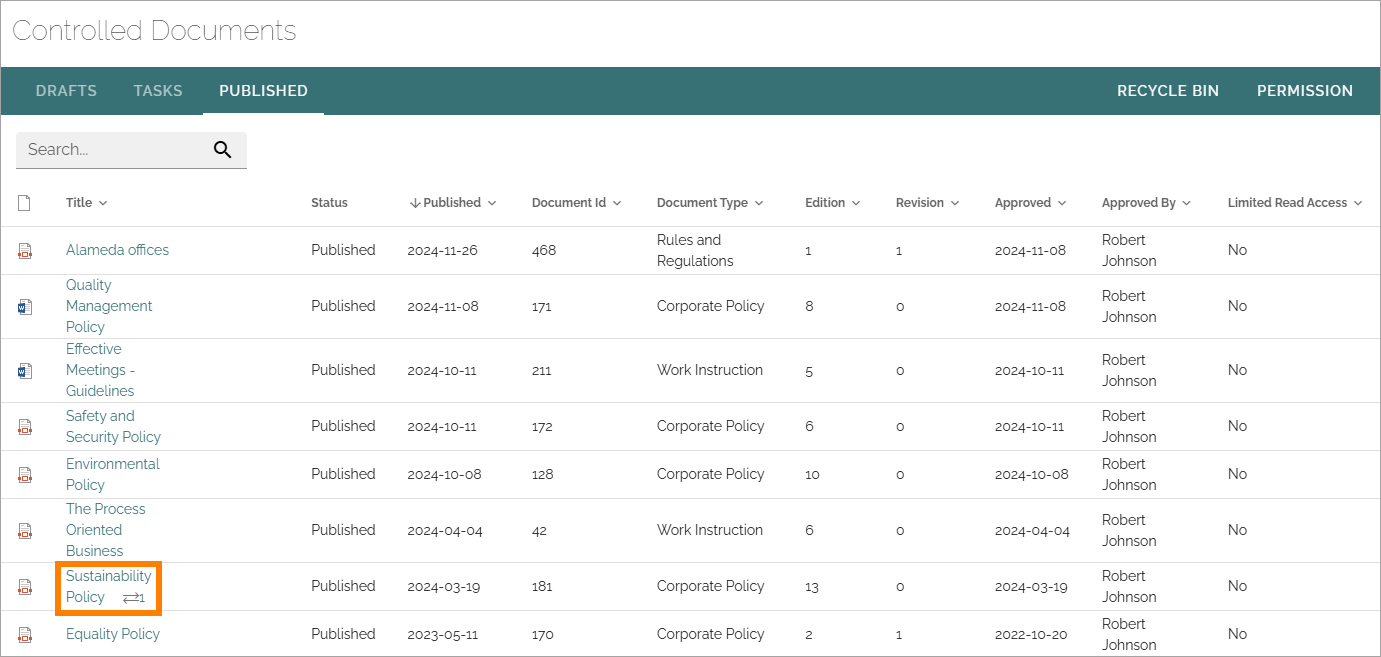
Note! Relations between documents works just one way. If document A is related to document B, this is not shown for readers of document B. If document B should be related to document A as well, that has to be added for document B.
Relate documents
You can relate documents using the menu for the document on the “Published” tab. Do the following:
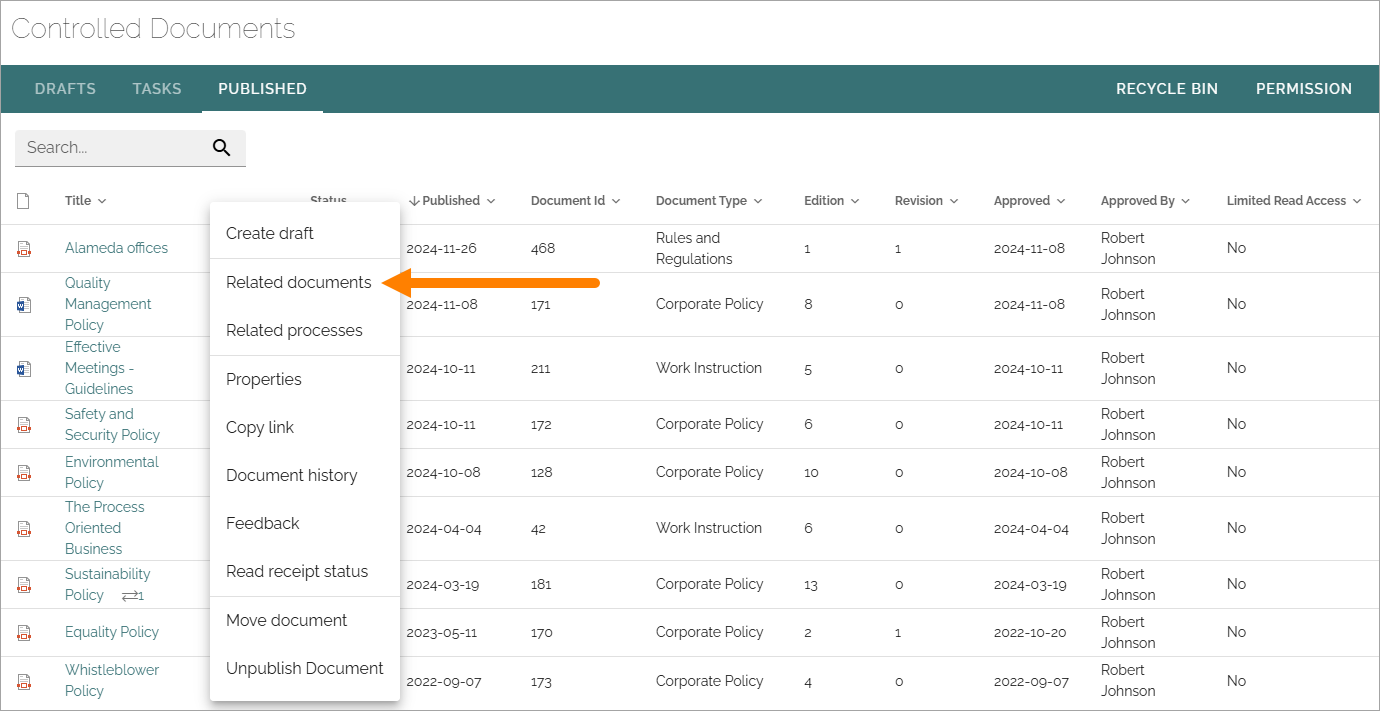
Open the dot menu for the document and select “Related documents”.
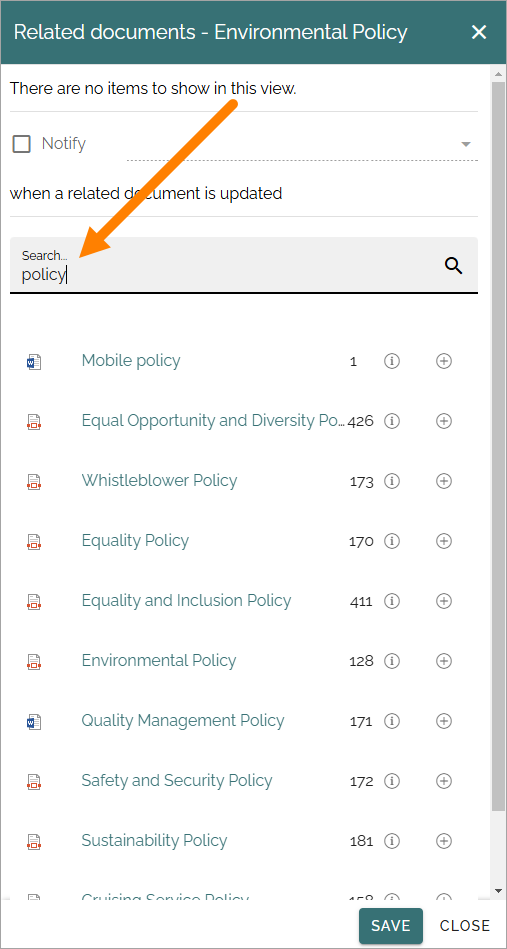
Search for documents to relate to.
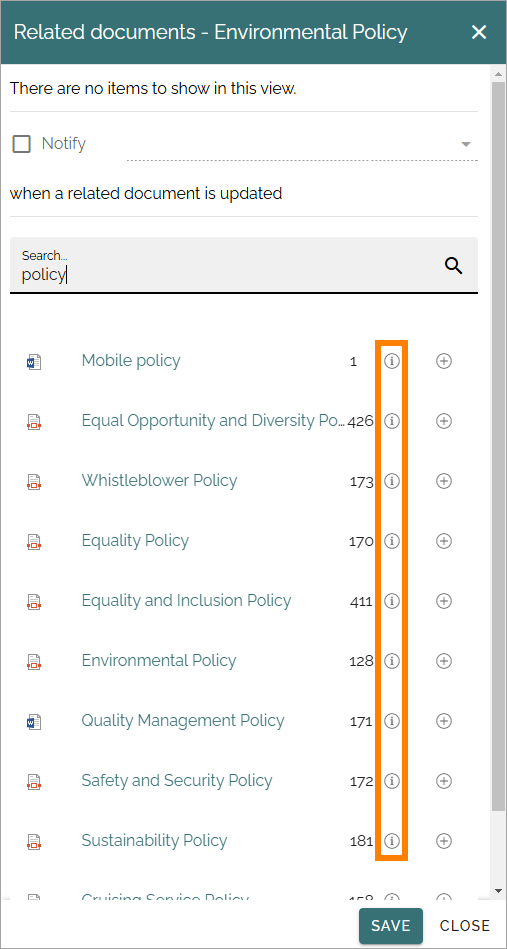
Click the i icon if needed, to see a document’s properties.
Click the plus to create a relation to one or more documents.
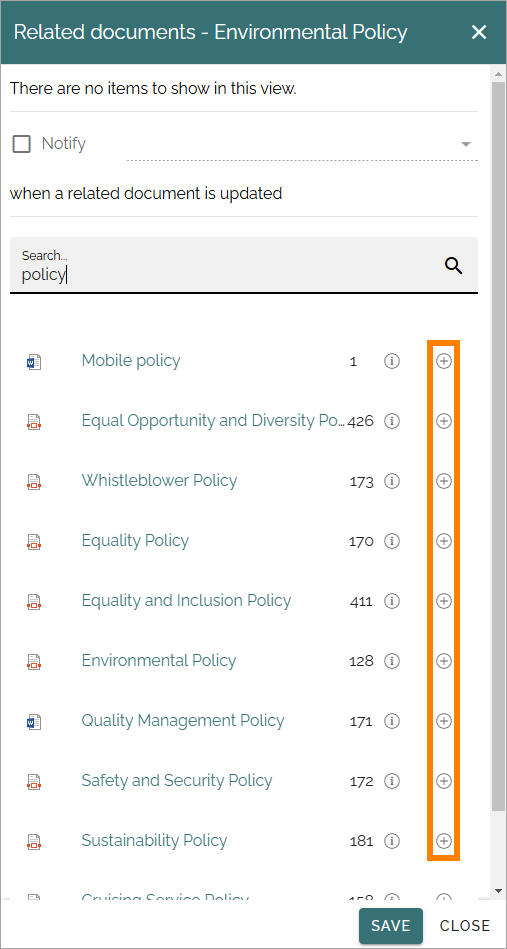
Any number of documents in the search result can be related to, and a new search can be conducted to relate to even more documents, if needed. The related document(s) are shown at the top, for example:
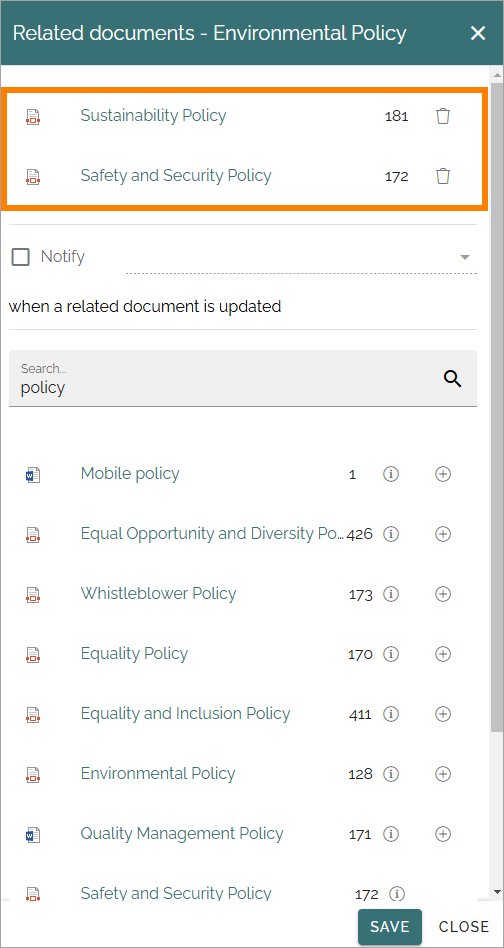
Click “Save”.
Relations to documents are updated for the readers immediately. No new publication is needed.
Remove a related document
To remove a related document from the list, do the following:
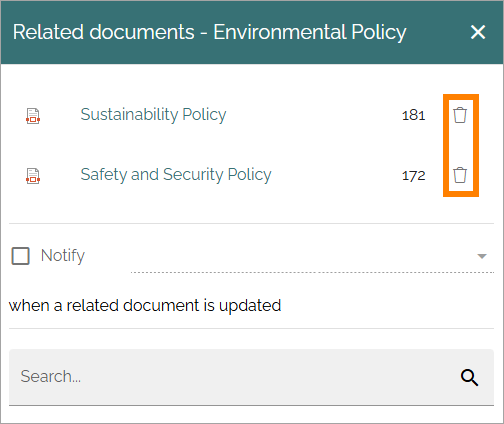
Click the dust bin for the document.
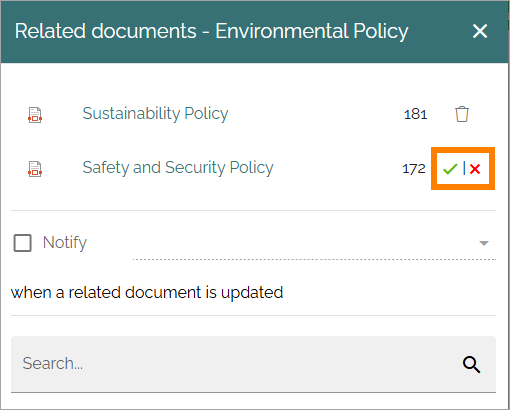
Click the green icon the acknowledge the removal, the red to cancel.
Save.
Being notified when any related document is updated
To activate notification for related documents, select who is going to be notified. When the option is active an Email is sent to the receiver every time a new edition is published for any related document.
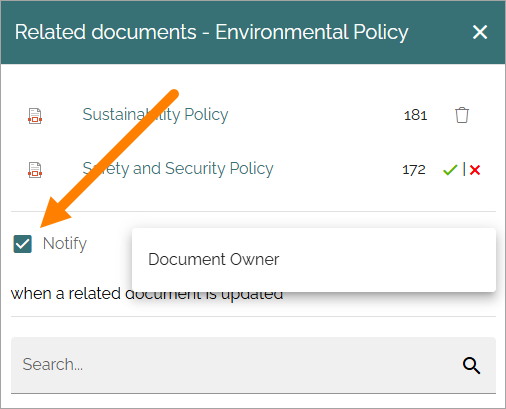
Document owner is always available but other person fields can also be available depending on how Document management is set up.